
The Missing Context in AI Video Generation
Every AI video generation tool on the market asks you the same thing: type a prompt, maybe attach a reference image, and hit generate. The result is a clip that exists in isolation, disconnected from everything that comes before and after it.
Film is a temporal medium. A shot only has meaning in the context of the shots around it. The way a scene cuts from a wide establishing shot to a close-up, the rhythm of action and reaction, the visual continuity between moments. That's the language of editing. And right now, AI video tools don't speak it.

The In/Out Point Problem
If you've ever used a professional NLE like Avid, Premiere, or Resolve, you know in/out points. You mark an in point where you want something to start, an out point where you want it to end, and the system understands that range as a unit of work.
In the context of AI video generation, in/out points solve a problem that no other tool addresses: what frames should the AI see as context?
Consider this scenario: you have a 30-second timeline with a wide shot of a street, followed by a close-up of a character, followed by an interior scene. You want to generate a transitional clip between the street and the close-up. Without in/out points, you'd have to manually extract frames, upload them separately, and mentally keep track of where this generated clip belongs.
With a timeline, you simply set your in point on the last frame of the street shot and your out point on the first frame of the close-up. The system extracts those frames automatically and sends them to the model as start and end reference images. The generated clip knows where it lives because the timeline told it.
Start and End Frame Extraction
The technical implementation of frame extraction from a timeline is more nuanced than it sounds. The timeline is time-based (floating-point seconds), not frame-locked. Clips can have different frame rates. A 24fps source clip next to a 30fps clip next to a generated 24fps clip. The in/out points need to resolve to actual pixel data regardless of what's underneath them.
When you hit generate, the system walks the timeline at the in-point time and the out-point time, finds which clip occupies each position, seeks that clip's video element to the correct moment, and captures the frame from the canvas:
// Find the clip at a given timeline time
const clipsAtTime = clips.filter(c =>
  c.type === 'video' &&
  timelineTime >= c.startTime &&
  timelineTime < c.startTime + c.duration
)

// Seek the hidden video element to the right moment
const clipLocalTime = timelineTime - clip.startTime + clip.trimStart
video.currentTime = clipLocalTime

// Capture the frame from canvas
const dataUrl = canvas.toDataURL('image/png')
There's a tolerance built in. If your in point is placed right at the edge of a clip boundary, even a frame or two off, the system still grabs that frame rather than failing. And if an in or out point doesn't land on any clip at all (maybe it's in a gap), it simply doesn't send that frame. The generation model receives one frame, or two, or none, depending on what the timeline provides.
Filmmakers don't think in exact frame numbers when they're experimenting. They scrub, they approximate, they feel out the timing. The tool needs to meet them where they are.
Linked Clips: Generation Remembers Its Source
When you edit film, you carry a mental map of which shots are related. The wide and the close-up were shot at the same location. The B-roll was cut to cover a specific dialogue beat. Those relationships live in the editor's head, invisible in the timeline itself.
With AI-generated clips, I wanted to make those relationships explicit. When you generate a clip from an in/out selection, the system creates a link between the generated clip and the source clips that provided the start and end frames. The generated clip carries a linkedClipIds field, a direct reference back to the clips it was born from.
It's not just metadata. It's a physical constraint. Linked clips move together.
Group Movement
Drag a generated clip horizontally and its source clips move with it, preserving their relative timing. Drag a source clip and the generated clip follows. The entire group behaves as a single unit:
// All group members move by the same delta
// Delta is clamped so no clip in the group drops below time=0
const earliestStart = Math.min(...linkedGroup.map(id => {
  const c = clips.find(cl => cl.id === id)
  return c ? c.startTime : Infinity
}))
const clampedDelta = Math.max(delta, -earliestStart)
The same applies vertically. Move a linked clip to a different video track, and the entire group shifts tracks together. If any member of the group would land outside the available tracks or overlap with a non-group clip, the entire move is rejected. The group stays intact or doesn't move at all.
Without the lock, you'd constantly be slipping generated transitions out of alignment with their source material. With it, temporal relationships survive the chaos of timeline editing.
Visual Indicators
Linked clips are visually connected. Vertical guide lines extend from the generated clip down to its sources, with a lock icon at the connection point. While the clip is processing, the lock glows yellow (or blue for uploads) to indicate an active relationship. Once complete, hovering the lock reveals an unlock button. Click it to break the link and let the clips move independently.
When you select any clip in a linked group, all members highlight simultaneously, making the relationship immediately visible even on a complex timeline with many tracks.
fal.ai LTX-2: Cloud Video Generation
Generation runs on fal.ai's cloud infrastructure using the LTX-2 19B Distilled model. I originally handled video generation locally through ComfyUI with the WAN 2.2 model running on my RTX 3090 in LA. It worked, but it was slow (~3 minutes per clip), blocked the GPU for other services, and was limited to 66 frames at 16fps with no audio.
fal.ai's LTX-2 generates up to 120 frames at 24fps with audio in roughly a minute. More importantly, offloading video generation to the cloud frees the local GPU for Sharp 3D and image generation, both of which benefit from local execution because they need interactive feedback.
The architecture routes each generation type through a unified FIFO queue backed by PostgreSQL:
Timeline In/Out → Extract Frames → Queue (PostgreSQL)
                                         ↓
                                   Queue Processor
                                    ├── video → fal.ai LTX-2 (cloud)
                                    ├── spark → Sharp 3D API (local GPU)
                                    └── image → Z-Image/Qwen (local GPU)
For video generation, the processor sends the start/end frames as base64 data URIs along with the prompt. fal.ai returns a temporary URL, the processor downloads the result and saves it locally, and the clip appears on every connected user's timeline.
Smart VRAM Clearing
All three generation services (Sharp 3D, Z-Image/Qwen image generation, and the legacy local video path) share a single RTX 3090 with 24GB of VRAM. The queue processor only flushes GPU memory when switching between different service types. Two image generations back-to-back? The model stays loaded. Switch from image to Sharp 3D, and both services get a clear-vram call before the new task starts.
// Only clear VRAM when switching between local GPU services
if (lastType && lastType !== item.type) {
  if (item.type === 'spark' || item.type === 'image') {
    await clearAllLocalVram()
  }
}
That avoids the 15-20 second cold-start penalty of reloading models when the queue processes consecutive items of the same type.
Real-Time Collaboration on a Timeline
Multiple users connect to the timeline via WebSocket through a shared Hocuspocus server backed by Yjs CRDTs. Everyone sees the same clips, the same playhead position, the same in/out selection. When one user generates a clip, everyone sees the processing animation. When it completes, the clip appears for all users simultaneously.
The collaborative canvas I built earlier works differently. Each user has their own cursor, their own selection, their own viewport. The canvas is spatial. Users work in different areas simultaneously.
A timeline is sequential. One playhead. One in/out selection. One frame playing at any given moment. Everyone is literally watching the same thing, which enables a review-and-feedback workflow that mirrors how film editing actually happens in post-production suites.
The Local File Challenge
When a user imports a video from their local device, that file only exists in their browser. Other users can't see it because browser security prevents sharing raw file data over WebSocket. So the timeline displays a placeholder for other users: the clip's owner, filename, and duration, with a striped pattern where the video should be.
The workflow becomes: import locally, review on your own machine, and when the clip is ready to share, upload it to the server.
Edge-Device Transcoding with FFmpeg.wasm
Upload presented an engineering challenge I hadn't anticipated. Film production footage is large. A 10-second clip from a modern camera can easily be 200MB+. Uploading that raw to a small server would be painful.
So I transcode on the user's device before upload. FFmpeg.wasm runs the full FFmpeg codec suite in the browser via WebAssembly. When a user clicks upload on a clip larger than 50MB, the browser automatically compresses it to 1080p H.264 before sending anything to the server.
// Scale to 1080p height, auto-width preserving aspect ratio
await ffmpeg.exec([
  "-i", inputName,
  "-vf", "scale=-2:1080",
  "-c:v", "libx264",
  "-crf", "28",
  "-preset", "ultrafast",
  "-c:a", "aac",
  "-b:a", "128k",
  "-movflags", "+faststart",
  "-y", outputName,
])
Files under 50MB upload as-is since there's no point re-encoding a clip that's already small enough. The original framerate and aspect ratio are always preserved.
Non-Blocking Compression
Compression runs in a Web Worker, so the user can keep editing the timeline while their clip transcodes. The clip on the timeline shows a blue shimmer animation during compression and upload, synced to all connected users so everyone knows what's happening:
The status progression goes from Converting... (blue animation, FFmpeg.wasm is transcoding) to Uploading... (blue animation, compressed file going to the server) to Complete, at which point the clip becomes a shared cloud asset, visible to everyone.
Once the upload succeeds, the clip's sourceType flips from local to cloud, the cloudUrl is set, and the update syncs via Yjs to all connected users. The local file keeps playing for the owner the entire time with no interruption.
Loading the WASM Runtime
FFmpeg.wasm's core files are ~31MB. Loading them from a CDN introduces CSP (Content Security Policy) headaches and external dependency. Instead, the WASM files are bundled locally: a postinstall script copies them from node_modules to public/ffmpeg/, and the loader fetches them from the same origin, converting to blob URLs to satisfy CSP restrictions on Web Worker instantiation.
const baseURL = `${window.location.origin}/ffmpeg`
const coreURL = await toBlobURLLocal(
  `${baseURL}/ffmpeg-core.js`, "text/javascript"
)
const wasmURL = await toBlobURLLocal(
  `${baseURL}/ffmpeg-core.wasm`, "application/wasm"
)
await ffmpeg.load({ coreURL, wasmURL })
First load takes a few seconds as the browser downloads and compiles 31MB of WebAssembly. After that, the instance stays in memory for the session.

Frame Credits and Cost Tracking
Generation isn't free. fal.ai's LTX-2 pricing scales with resolution:
| Resolution | Cost per Second | |-----------|----------------| | 1080p | $0.06/s | | 1440p | $0.12/s | | 2160p | $0.24/s |
Under the hood, fal.ai charges $0.0008 per megapixel of generated video data. The megapixel count is (width × height × frames) / 1,000,000, rounded up. For our current generation pipeline at 720p (1280×720) with 120 frames, that works out to:
1280 × 720 × 120 = 110,592,000 pixels
110.6 megapixels × $0.0008 = $0.0885 per clip
At 120 frames and 24fps, that's 4.8 seconds of video for roughly nine cents. A five-second establishing shot costs less than a dime. But iterate ten times on a tricky transition and you've spent a dollar. It adds up when you're experimenting, which is the whole point of having a timeline.
I implemented a per-user daily frame credit system: 250 frames per day, roughly $0.50 worth of generation at 720p. The credit count is tracked server-side via cookies with a 24-hour TTL. When credits run out, the entire generation UI shifts from yellow to red: the in/out brackets, the selection area, the dotted guide lines, the prompt border, the generate button, even the suggested new track area. Unmistakable.
Clicking the frame counter opens an info modal showing remaining credits and a countdown to the daily reset. For admin users, the credit counter has a subtle reset mechanism. Hover over the number and it turns into a refresh icon that resets on long-press.
Cost Transparency
Every generated clip displays its cost in the DAM (Digital Asset Management) side panel. The cost is calculated before generation starts and stored in PostgreSQL alongside the queue item. When browsing generated clips, you see exactly what each one cost, right next to the user who generated it and the prompt they used.
I wanted cost to be visible, not hidden. Understanding what each clip costs changes how you work. You iterate on prompts more carefully, tighten your in/out selection to only the frames you need, develop an intuition for the cost-quality tradeoff. A single generation costs about the same as a few seconds of thought. The economics start to feel like film stock. Not infinite, but cheap enough to experiment freely.
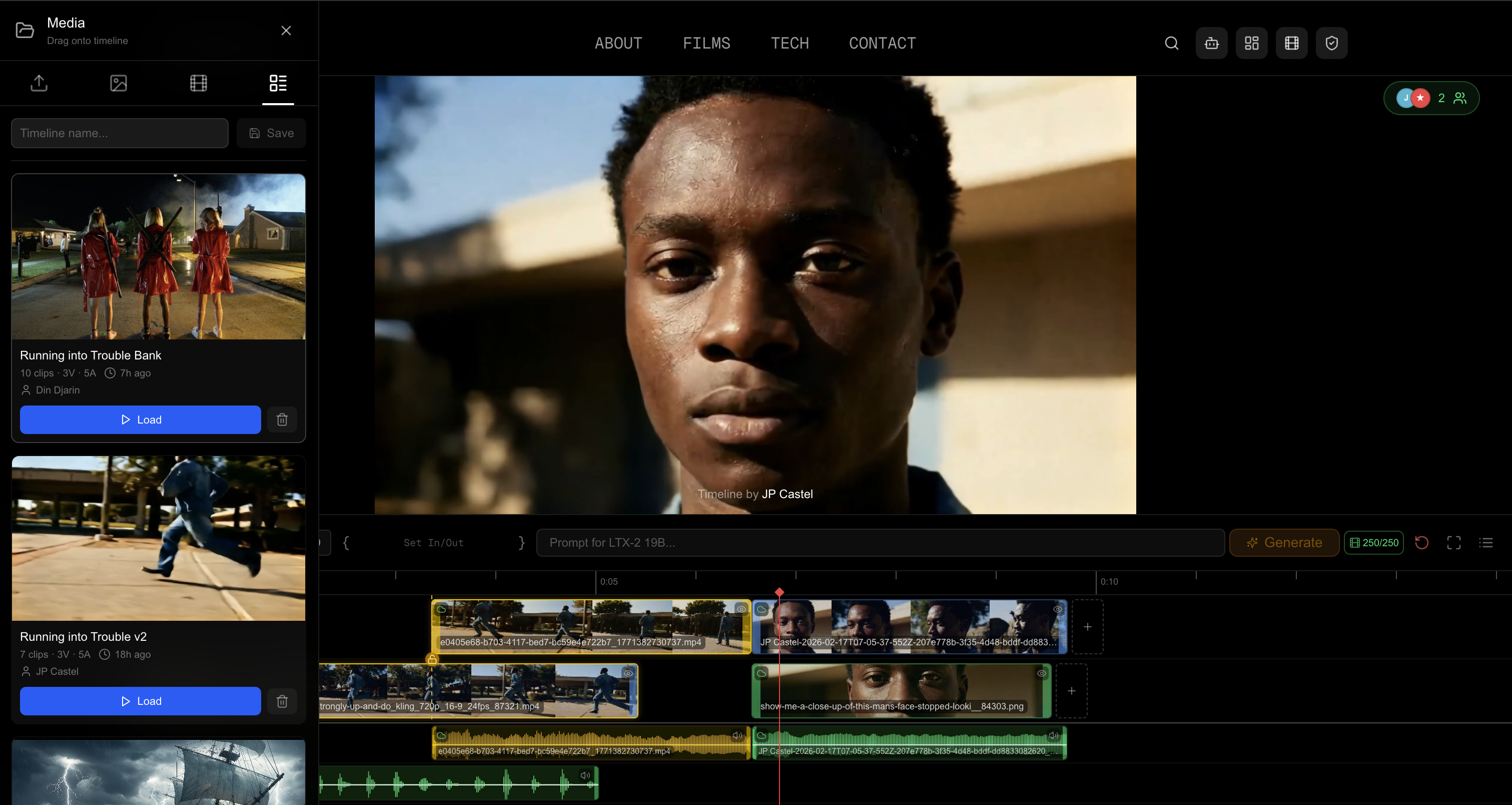
Saving and Loading Timelines
A collaborative timeline that only lives in memory isn't much good. The save system captures the full state as a JSON snapshot (every clip, every track, every relationship) along with a preview image captured from the video player at the moment of saving.
What Gets Saved
Every piece of data needed to reconstruct the editing state is serialized. Clip positions, durations, trim points, track assignments, source types, cloud URLs, thumbnails, waveform data. The linkedClipIds arrays are preserved, so generated clips remain locked to their sources after a load. Video and audio track definitions carry over. The save also records who saved it, when, and captures a preview screenshot from the video player.
What doesn't get saved: local file references. A blob URL pointing to a file on someone's laptop is meaningless after a page refresh, let alone on a different machine. Local clips get a placeholder marker, so when the timeline is loaded the owner needs to re-select the file or upload it.
{
  "name": "Scene 4 - Street Chase",
  "savedAt": "2026-02-16T08:30:00.000Z",
  "savedBy": "JP Castel",
  "clips": [
    {
      "id": "clip-1771238166454",
      "name": "establishing_wide.mp4",
      "duration": 8.5,
      "startTime": 0,
      "trackIndex": 0,
      "sourceType": "cloud",
      "cloudUrl": "/api/clips/establishing_wide.mp4",
      "linkedClipIds": [],
      "hasAudio": true
    },
    {
      "id": "clip-gen-1771238213411",
      "name": "AI: jeep drives under camera",
      "duration": 4.8,
      "startTime": 8.5,
      "trackIndex": 1,
      "sourceType": "generated",
      "cloudUrl": "/api/clips/4bbd3ff0-...mp4",
      "linkedClipIds": ["clip-1771238166454", "clip-1771238320050"]
    }
  ],
  "tracks": [{"id": "v1", "name": "V1"}, {"id": "v2", "name": "V2"}],
  "audioTracks": [{"id": "a1", "name": "A1"}]
}
Loading Into Yjs
Loading a saved timeline is a collaborative operation. Because the timeline runs on Yjs CRDTs for real-time sync, loading doesn't just update one user's view. It replaces the state for everyone.
The load clears all existing clips from the Yjs document, pushes the saved track definitions back in, restores each clip through the CRDT layer, and resets the playhead to zero. Because every operation goes through Yjs, the changes propagate to all connected clients in real-time. One user hits "Load" and every connected browser sees the timeline rebuild simultaneously.
The DAM Side Panel
Saved timelines live in the same DAM side panel that houses generated images, uploaded clips, and other assets. Each one shows a preview thumbnail (captured at save time), the name, clip and track counts, who saved it, and when. Hover the thumbnail and it plays a preview loop. Admin users get a delete button; everyone gets a load button with a confirmation dialog, since loading replaces the current timeline for all users.
The save files are plain JSON on the server filesystem alongside a PNG preview. No database involved. The files are the database. Simple, inspectable. Open a timeline JSON in any text editor and you can see exactly what's in it.
Fullscreen Playback
Professional editing demands fullscreen review. The fullscreen mode needed to survive clip transitions without the browser pulling you back out, and the fix turned out to be surprisingly subtle.
I had originally set a React key prop on the video player component tied to the current clip ID. Common React pattern: change the key, remount the component, get fresh state. But remounting means destroying and recreating the DOM element. If that element is the one the browser granted fullscreen to, Chrome immediately exits fullscreen.
Removing the key prop and letting React update the component in place fixed it. The player's internal state handles clip transitions without DOM destruction. The canvas compositor runs at a fixed 1920x1080, avoiding the dimension changes that would also trigger a fullscreen exit.
In fullscreen, a YouTube-style progress bar sits above the controls: a grey track with a red played portion, a diamond scrub handle, and yellow (or red, if no credits) in/out markers overlaid behind the playback line.
The Filmmaker's Perspective
The infrastructure is interesting, but the point is the workflow.
Every AI video tool today is an isolated sandbox. Generate a clip, download it, import it into your NLE, see if it works in context, go back to the generation tool, adjust, regenerate, re-import. That round-trip destroys creative momentum.
A timeline collapses the loop. You see your generated clip in context immediately. In/out points give you filmmaker-native controls, the same paradigm you'd reach for in Avid or Resolve to define a range for a render or an effect. The prompt field is right there. Generate, review, adjust, regenerate, all without leaving the editing surface.
I'm not trying to replace professional NLEs. I'm trying to give AI generation a home that understands temporal context. An image exists as a moment. A video clip exists as a sequence of moments. But a shot exists as a piece of a larger story, and it only makes sense when you can see what comes before and after it.
That's what a timeline provides. That's why AI video generation needs one.